
The Hash Hedge app is the online account environment used to register, sign in, manage challenges and review account information connected with Hash Hedge. Despite the word “app,” the main access point is a browser-based platform rather than a conventional program that must be downloaded before use. A trader can open the service through a compatible browser on a desktop computer, laptop, tablet or smartphone.
This guide explains what the Hash Hedge web app is, how the official login works and which tasks can be completed from the dashboard. It also covers registration, challenge management, performance data, mobile access, security and common sign-in problems. The purpose is to separate the public website, personal dashboard, trading terminal and previous Client Area so that new and existing users can choose the correct section without exposing their account details to an unofficial page.
- What Is the Hash Hedge App and How Does It Work?
- Official Hash Hedge App Login and Registration
- How to Sign In to App
- How to Create a New Hash Hedge Account
- Hash Hedge Dashboard and Its Main Features
- Challenge Metrics and Risk Monitoring
- Wallet, Profit and Withdrawal Management
- Navigation and User Experience Inside the Hash Hedge App
- How to Enroll in a Challenge Through the App
- Managing Multiple Challenges in One Dashboard
- Using the Hash Hedge Trading Platform
- Hash Hedge Dashboard vs Trading Terminal
- Performance History, Reports and Account Analytics
- Is There a Hash Hedge Mobile App for Android or iOS?
- Browser Compatibility and Technical Requirements
- Hash Hedge App vs Website vs Old Client Area
- Account Security and Safe Access
- Common Hash Hedge App Login and Dashboard Problems
- Benefits and Limitations of the Hash Hedge Web App
- Who Is the Hash Hedge App Designed For?
- Hash Hedge App Support and Help Resources
- Final Overview of the Hash Hedge App
- Frequently Asked Questions About the Hash Hedge App
- Is Hash Hedge App a web application?
- Do I need to download the Hash Hedge App?
- Is Hash Hedge App available for Android?
- Is there a Hash Hedge App for iPhone?
- How do I create a Hash Hedge account?
- What is the difference between the Dashboard and trading terminal?
- Why does the login page mention the Old Client Area?
- Can I access Hash Hedge App from a mobile browser?
- What should I do if I cannot sign in?
What Is the Hash Hedge App and How Does It Work?
The Hash Hedge app is best understood as a web application connected to the Hash Hedge ecosystem. The public website introduces the service, its challenge formats and general conditions, while the protected app is where a registered user enters an individual account. This is why a search for “Hash Hedge app” often leads to a sign-in page rather than an App Store or Google Play listing.
A web app runs inside a browser but can still provide functions normally associated with installed software. After authentication, the system can display the user’s challenges, account status, performance indicators and other tools available for that profile. The exact set of options may depend on the account stage and the services already activated. A visitor without an account will normally see registration and sign-in options rather than private trading data.
The distinction matters because “app,” “dashboard,” “account” and “Client Area” may appear in different instructions while referring to related parts of the same user journey. The Hash Hedge web app is the access layer for account management; it is not a promise of funding, profit or successful challenge completion. Results still depend on the applicable program rules, risk limits, eligibility checks and the user’s own decisions.
Official Hash Hedge App Login and Registration
The official web address used for current account access is app.hashhedge.com. Check the domain before entering an email address or password. Similar names and unrelated applications can appear in search results, so use the main Hash Hedge website’s login link or type the verified address directly.
The screen provides sign-in, registration and password-recovery options. It may also link to the previous Client Area for challenges that remain in the older system. Use that legacy option only when an earlier challenge is specifically associated with it.
How to Sign In to App
Check the destination before entering credentials, then use this sequence:
- Open a current browser and go to the verified app.hashhedge.com address.
- Check that the connection uses HTTPS and that the domain is spelled correctly.
- Enter the email address associated with the Hash Hedge account.
- Enter the account password and use the visibility control only when the screen is private.
- Select the sign-in option and wait for the dashboard to finish loading.
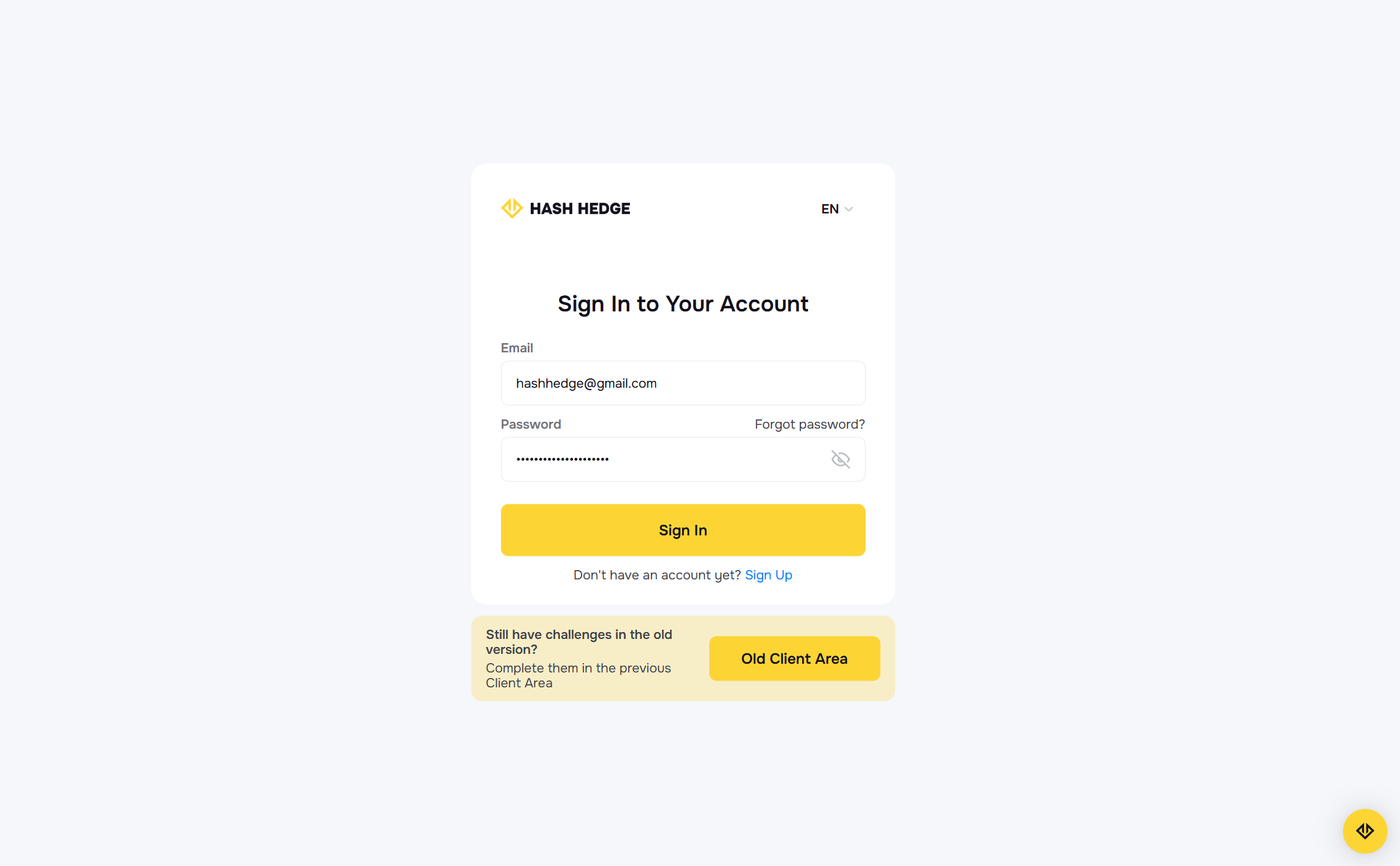
If access is rejected, use password recovery rather than repeatedly guessing. Open the previous Client Area only when the login notice applies to the account.
How to Create a New Hash Hedge Account
A new user can select registration and complete the requested fields. Details should be accurate because inconsistencies may complicate support or identity checks. Use a unique password that is not shared with an email account, exchange or another platform.
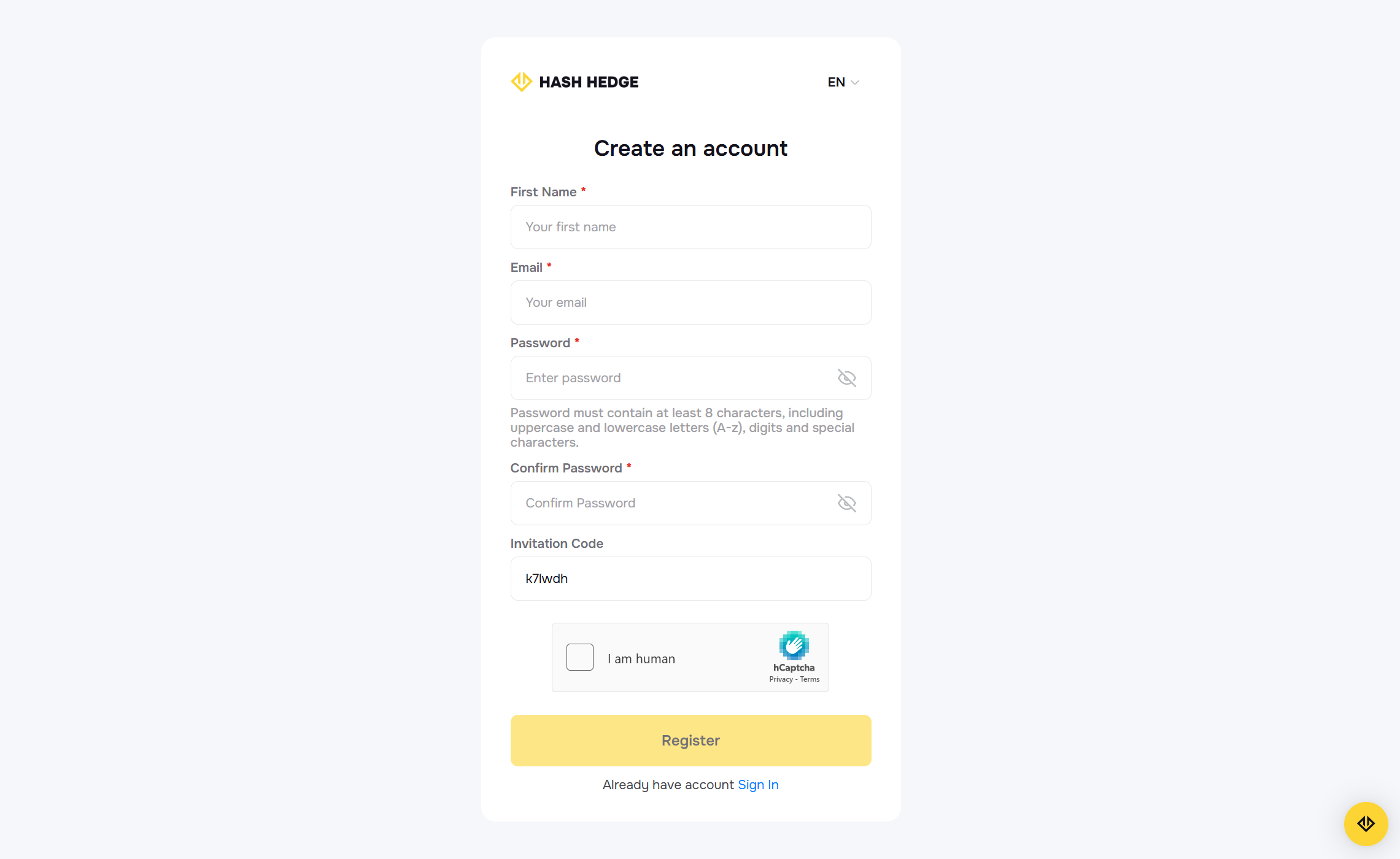
After registration and any required confirmation, the user can enter the dashboard. A profile does not automatically activate a challenge: enrollment, selection and payment remain separate steps.
Hash Hedge Dashboard and Its Main Features
The Hash Hedge dashboard is the web app’s account-management centre. It brings together the user profile, active services, challenge stages and available metrics. The interface may evolve, but its main purpose remains practical oversight.
Depending on account status, the Hash Hedge app may provide access to several categories of information:
- active and previously enrolled challenges;
- the current evaluation or account stage;
- balance, equity and performance information;
- risk-limit and progress indicators;
- wallet or withdrawal-related functions when available;
- profile, security and account-management settings.
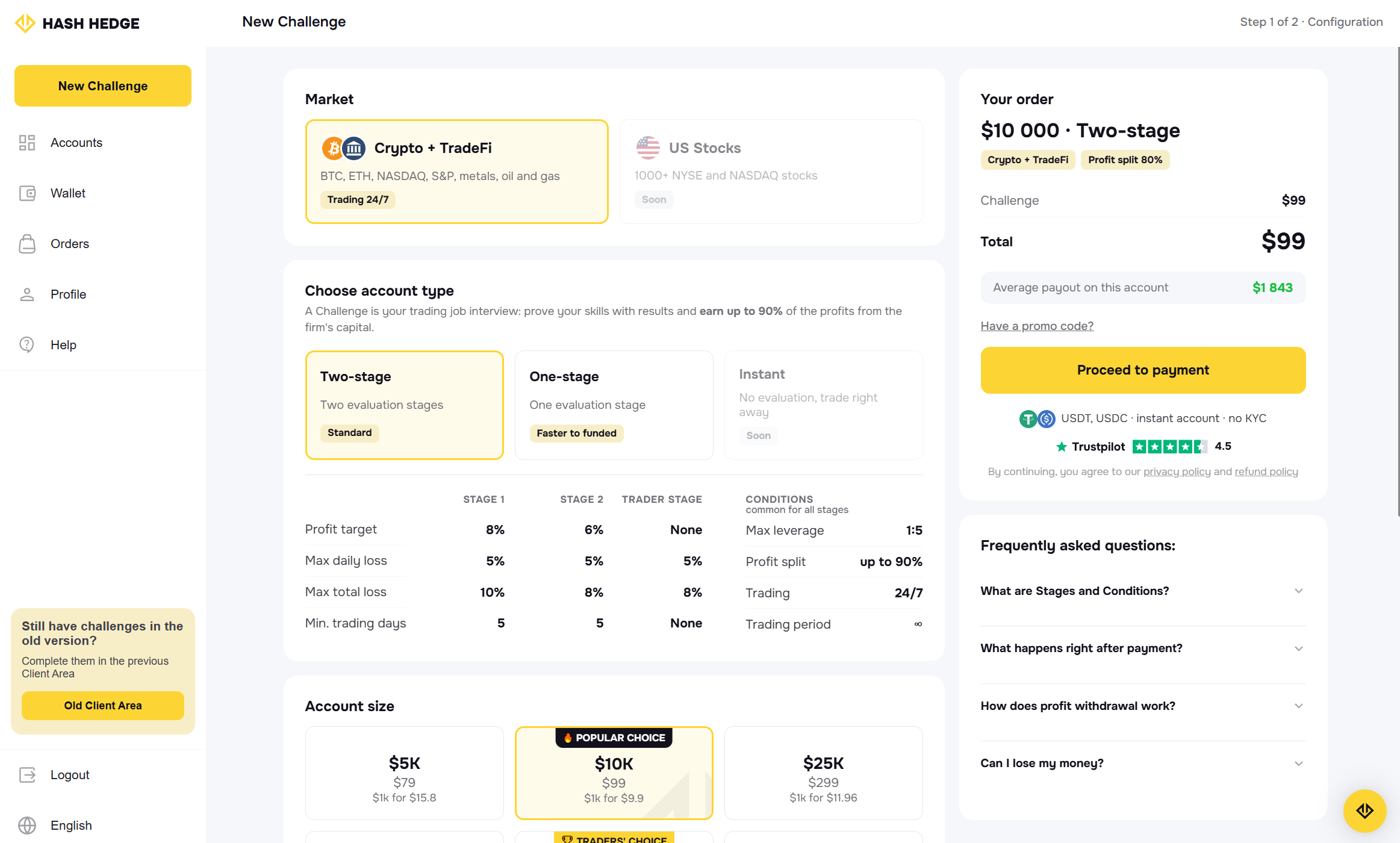
Dashboard data does not replace the official rules. Before trading, understand how the profit objective, daily loss, maximum loss and other conditions apply to the selected challenge.
Challenge Metrics and Risk Monitoring
Balance generally reflects closed activity, while equity can also reflect open positions. The distinction matters when a rule refers to equity rather than only to closed balance. The interface can show progress and the remaining room before a threshold, but the underlying rule remains authoritative.
Review metrics before and after trading, not only when a warning appears. Compare them with a personal risk plan and check how open exposure affects the available buffer.
Wallet, Profit and Withdrawal Management
When eligible, a user may move an available profit share from the relevant challenge dashboard to the internal Wallet before completing a withdrawal request. Check eligibility, verification and supported withdrawal details inside the current account.
Do not rely on an old review or screenshot. Displayed trading profit may differ from the amount currently available, so confirm the status, wallet details and rules before submitting a request.
Navigation and User Experience Inside the Hash Hedge App
The dashboard is designed around tasks rather than general promotional information. After login, the user should first identify the relevant challenge or account and confirm its status before opening a detailed view. This reduces the risk of checking one account while intending to manage another, especially when several challenges have similar names or balances.
Most actions can be understood as movement between three levels: the overall account, an individual challenge and the tools connected with that challenge. The overall view helps users locate their active services. The challenge view provides more specific progress and risk information. A trading or withdrawal action then belongs to the selected account rather than to the profile as a whole.
A clear routine makes the interface easier to use. Start by confirming the account identifier and stage, then review balance, equity and limits, and only after that open the required function. Labels and menu positions may change during updates, so users should rely on the meaning of the displayed data rather than memorising one screenshot. If an expected section is missing, the account may not yet be eligible for it, or the user may be viewing the wrong challenge.
How to Enroll in a Challenge Through the App
Challenge enrollment begins after account creation. Hash Hedge may offer more than one challenge structure, so the choice should be based on the current objectives, stages, loss limits, account size and fee rather than on the largest headline amount. Optional additions, payment methods and promotional fields can also affect the final order, making the confirmation screen an important part of the process.
A typical enrollment sequence includes the following steps:
- Sign in to the Hash Hedge app with the account that will own the challenge.
- Open the challenge enrollment or purchase section.
- Compare the currently available challenge types and account sizes.
- Read the objectives, risk limits and other applicable conditions.
- Select any available options and enter a promotional code only if it is valid.
- Choose a supported payment method and check the final total.
- Complete the order and verify that the new challenge appears in the dashboard.
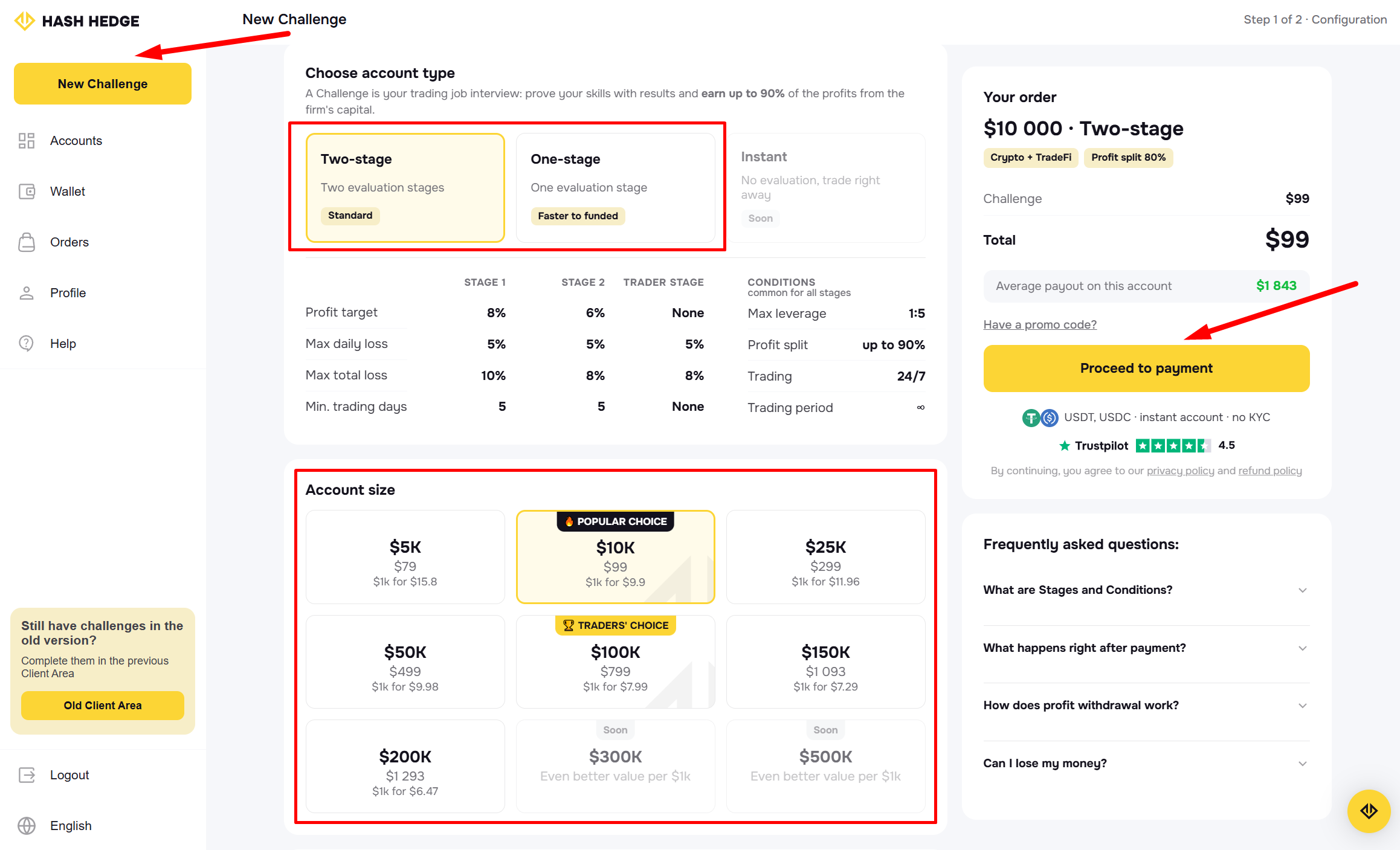
The purchase should not be treated as a shortcut to a funded account. It grants access to the selected evaluation path under its stated conditions. Before the first trade, the user should verify that the correct account has been activated and should calculate position risk using the limits shown for that specific challenge.
Managing Multiple Challenges in One Dashboard
A single Hash Hedge profile may be used to manage the services associated with that user, which can include more than one challenge when permitted by the current conditions. The practical advantage is a consolidated view: the trader does not need a separate identity for every purchase. However, consolidation does not merge the rules, balances or results of individual accounts.
Each challenge should be treated as an independent risk environment. A profit on one account does not increase the loss allowance of another, and a stage completed on one challenge does not advance a different challenge. Before opening the trading interface, the user should confirm the account size, challenge type, current stage and relevant identifier. This simple check helps prevent activity from being placed on the wrong account.
Users managing several challenges may benefit from keeping a private record of the account identifier, stage, start date and personal risk ceiling. The dashboard remains the primary source for current platform data, while the private record supports organisation. Limits on the number or combination of active challenges may change, so the latest account rules should be reviewed instead of relying on an older article.
Using the Hash Hedge Trading Platform
The Hash Hedge app connects account administration with trading, but the functions differ. The dashboard shows the active challenge, progress and risk buffer. The trading interface is where the user studies markets and manages orders or positions.
Before placing an order, confirm the account, balance and equity. Then check order type, direction, size and risk controls. Market, limit and stop instructions behave differently, and volatile crypto markets can move rapidly.
Compare terminal performance with dashboard challenge data. Timing, open-position valuation or settlement differences can matter near a limit. If figures appear inconsistent, pause new activity and request official clarification.
Hash Hedge Dashboard vs Trading Terminal
The dashboard presents account status, progress, risk information and eligible actions. The terminal displays charts and manages market exposure. Opening the dashboard does not place a trade, and closing a browser tab does not necessarily close an existing position.
Confirm positions and orders inside the trading view, and use the dashboard to monitor how the results affect the challenge.
Performance History, Reports and Account Analytics
Account analytics turn individual trades into a broader view of performance. Instead of focusing only on whether the latest position was profitable, a trader can review how results developed over time and whether losses were concentrated in a particular period. The available reporting fields may vary, but the most useful data generally combine account value, completed activity and risk-limit progress.
Important figures to review can include:
- current balance and equity;
- realised and unrealised results;
- open and closed positions;
- daily performance and cumulative progress;
- remaining room before an applicable risk threshold.
Analytics are most valuable when they are used for control rather than self-justification. A positive total result can hide excessive intraday exposure, while a temporary loss does not necessarily indicate that a tested strategy has failed. The user should combine dashboard information with a written trading plan and the exact challenge rules. Historical figures describe what has happened; they do not guarantee what the next trade will produce.
Is There a Hash Hedge Mobile App for Android or iOS?
People searching for a Hash Hedge mobile app often expect a separate download for Android or iPhone. The publicly documented access route, however, directs users to the browser-based account at app.hashhedge.com. This web format can be opened from a mobile browser without installing an unknown package from a third-party website.
Users should not assume that every store listing containing “Hash” or “Hedge” belongs to Hash Hedge. Those words appear in the names of unrelated finance, investment and cryptocurrency products. Before installing anything, look for a direct official link from hashhedge.com and confirm the developer identity, permissions and store information. If no verified download link is provided, the web app is the safer access method.
A browser may allow the Hash Hedge login page to be added to a phone’s home screen. This creates a convenient shortcut and can make the website feel similar to an installed app, but it does not automatically turn it into a native Android or iOS application. The shortcut still opens the web service and requires an internet connection.
Browser Compatibility and Technical Requirements
The Hash Hedge web app does not require a complex local installation, but it depends on a stable browser environment. A current version of a mainstream browser, a reliable internet connection and support for normal authentication functions are sensible basic requirements. Desktop computers and laptops provide more screen space for charts and account data, while tablets and phones can be useful for checking status or completing simpler account tasks.
If the app does not load correctly, the cause may be local rather than account-related. An outdated browser, damaged cached data, disabled cookies, an aggressive content blocker or an unstable network can interrupt login or prevent parts of the interface from appearing. Private browsing can be used as a diagnostic test, but it should not replace normal security precautions.
Users should avoid placing time-sensitive orders through an unreliable connection. Mobile networks can switch between towers, and public Wi-Fi may introduce both instability and security concerns. When account information is important, use a trusted device and connection, keep the operating system updated and close unused sessions after finishing.
Hash Hedge App vs Website vs Old Client Area
Hash Hedge uses several connected online areas, and each one serves a different purpose. The public website is not the same as the authenticated dashboard, while the current app and previous Client Area should not be used interchangeably without checking where a challenge is located. The following comparison clarifies the roles.
| Platform section | Primary purpose | Typical user action | Access method |
|---|---|---|---|
| Hash Hedge website | Public information about the service | Review challenge information and official documents | Public website |
| Hash Hedge App | Personal account and challenge management | Register, sign in and monitor progress | Authenticated web application |
| Trading terminal | Market analysis and trade execution | Create and manage orders or positions | Selected account trading view |
| Old Client Area | Access to applicable legacy challenges | Continue an earlier challenge when instructed | Legacy link shown on the login page |
New users should normally begin with the current Hash Hedge app. The previous Client Area is relevant only when the login page or official support indicates that an existing challenge remains there. The trading terminal should be opened from the correct account context so that orders are associated with the intended challenge.
Account Security and Safe Access
A trading-related account can attract phishing attempts because it may contain personal information and access to financial functions. Security begins before login: the user must confirm the exact domain and avoid entering credentials through links received from unknown accounts. Search advertising, social media messages and copied support profiles should never be treated as proof that a page is official.
Basic protective measures include:
- using a long password created only for the Hash Hedge account;
- keeping the connected email account secure;
- checking the full domain before every sensitive action;
- never sharing passwords or confirmation codes with another person;
- avoiding account access on public or unmanaged devices;
- signing out and closing the session after using a shared computer.
Support staff should not need the user’s password to investigate a normal account issue. Screenshots sent for assistance must hide passwords, recovery codes, wallet secrets and unrelated personal data. If a suspicious page has already received credentials, the password should be changed through the verified service and the incident should be reported through an official support channel.
Common Hash Hedge App Login and Dashboard Problems
A failed login does not necessarily mean an account was removed. A typing error, saved password or browser issue can produce the same result. Verify the email and domain, then use official recovery if the password is uncertain.
If dashboard content is missing, confirm the correct profile and challenge. An older challenge may belong to the previous Client Area, while a new one may still be activating. For an incomplete page, refresh once, test a current browser and clear site-specific cached data. A blocker may also interfere with the interface.
A sensible troubleshooting order is:
- Verify the official domain and internet connection.
- Check the email address and use password recovery when necessary.
- Confirm whether the challenge belongs to the current or previous Client Area.
- Try a current browser or a private window on a trusted device.
- Record the error message and contact official support if the problem continues.
Do not create replacement accounts because a page is temporarily unavailable. Hash Hedge describes a single-account approach, so use official support when ownership, activation or status must be checked.
Benefits and Limitations of the Hash Hedge Web App
A browser-based platform offers practical advantages for users who move between devices. There is no need to locate an installation package, and platform updates can be delivered on the server side. The principal benefits include:
- access through a familiar web browser;
- no separate desktop installation for the dashboard;
- a central view of challenges and account information;
- availability across different screen sizes and operating systems.
The same model also has limitations that should be understood before relying on it for time-sensitive activity:
- the service requires a working internet connection;
- browser settings or extensions can affect functionality;
- a small mobile screen may be less suitable for detailed analysis;
- web access should not be confused with a verified native mobile application.
For many account-management tasks, the web format is convenient and sufficient. For chart analysis or precise order management, a larger display and stable connection may provide a clearer working environment. The best device therefore depends on the task rather than on the label “app.”
Who Is the Hash Hedge App Designed For?
The Hash Hedge app serves users at different stages of the account journey. A visitor can use it to register, while a new participant can select and activate an eligible challenge. An active trader can monitor progress and risk information, and a user who has advanced to another stage can view the functions made available for that account.
The platform may be useful for:
- new users creating their first Hash Hedge profile;
- participants preparing to enroll in a challenge;
- traders monitoring active evaluation accounts;
- users reviewing verification or later account stages;
- eligible users managing wallet and withdrawal-related actions.
The web app does not assess whether prop-style evaluation is suitable for a particular person. Before paying a fee, a prospective participant should understand the rules, the possibility of failing the challenge and the difference between simulated evaluation activity and any later opportunity. The platform provides access and information; it does not remove trading risk or guarantee a payout.
Hash Hedge App Support and Help Resources
Official support is appropriate when a problem cannot be resolved through normal login recovery or browser checks. Examples include an order that does not appear, a challenge attached to the wrong interface, an unexplained account status, a withdrawal-related question or a discrepancy that could affect compliance with a rule. Time-sensitive issues should be documented before additional account activity is attempted.
A useful support request contains enough information to identify the problem without revealing sensitive credentials. The user can prepare:
- the email address associated with the account;
- the relevant challenge or account identifier;
- the approximate time the issue occurred;
- the exact text of any error message;
- a screenshot with passwords and private details hidden;
- a short description of troubleshooting already completed.
Support channels should be opened from the official website, dashboard or verified documentation. Unsolicited direct messages are not a safe substitute. A genuine investigation should not require the account password, email password, wallet seed phrase or remote control of the user’s device.
Final Overview of the Hash Hedge App
The term “Hash Hedge app” primarily refers to the online account environment available through app.hashhedge.com. It gives registered users a central place to enter their profile, enroll in available challenges, select the relevant account and review dashboard information. The trading terminal, public Hash Hedge website and previous Client Area are connected parts of the wider service, but they perform different functions.
Users do not need to install an unverified program to reach the current web dashboard. The safest route is to follow the official website or enter the confirmed app address, check the domain and protect all credentials. Because challenge conditions, interface options and account procedures can change, current information displayed inside the verified platform and official documentation should take priority over old screenshots or third-party instructions.
Frequently Asked Questions About the Hash Hedge App
Is Hash Hedge App a web application?
Yes. It opens in a browser and provides registration, login and dashboard access.
Do I need to download the Hash Hedge App?
No conventional download is required; open the dashboard through a compatible browser.
Is Hash Hedge App available for Android?
Android users can open the web app in a browser. Trust a native download only when official Hash Hedge resources verify it.
Is there a Hash Hedge App for iPhone?
It can be accessed in an iPhone browser. A similar App Store name does not prove affiliation.
How do I create a Hash Hedge account?
Open the verified login page, select registration and complete the requested confirmation. Challenge enrollment is separate.
What is the difference between the Dashboard and trading terminal?
The Dashboard covers account progress and administration; the terminal covers charts, orders and positions.
Why does the login page mention the Old Client Area?
It remains relevant to certain earlier challenges and should be used only when the existing challenge is associated with it.
Can I access Hash Hedge App from a mobile browser?
Yes. A larger screen may still be more convenient for detailed charts and trading activity.
What should I do if I cannot sign in?
Verify the domain and email, recover the password, test a current browser and check the previous Client Area when applicable. Contact verified support if needed.